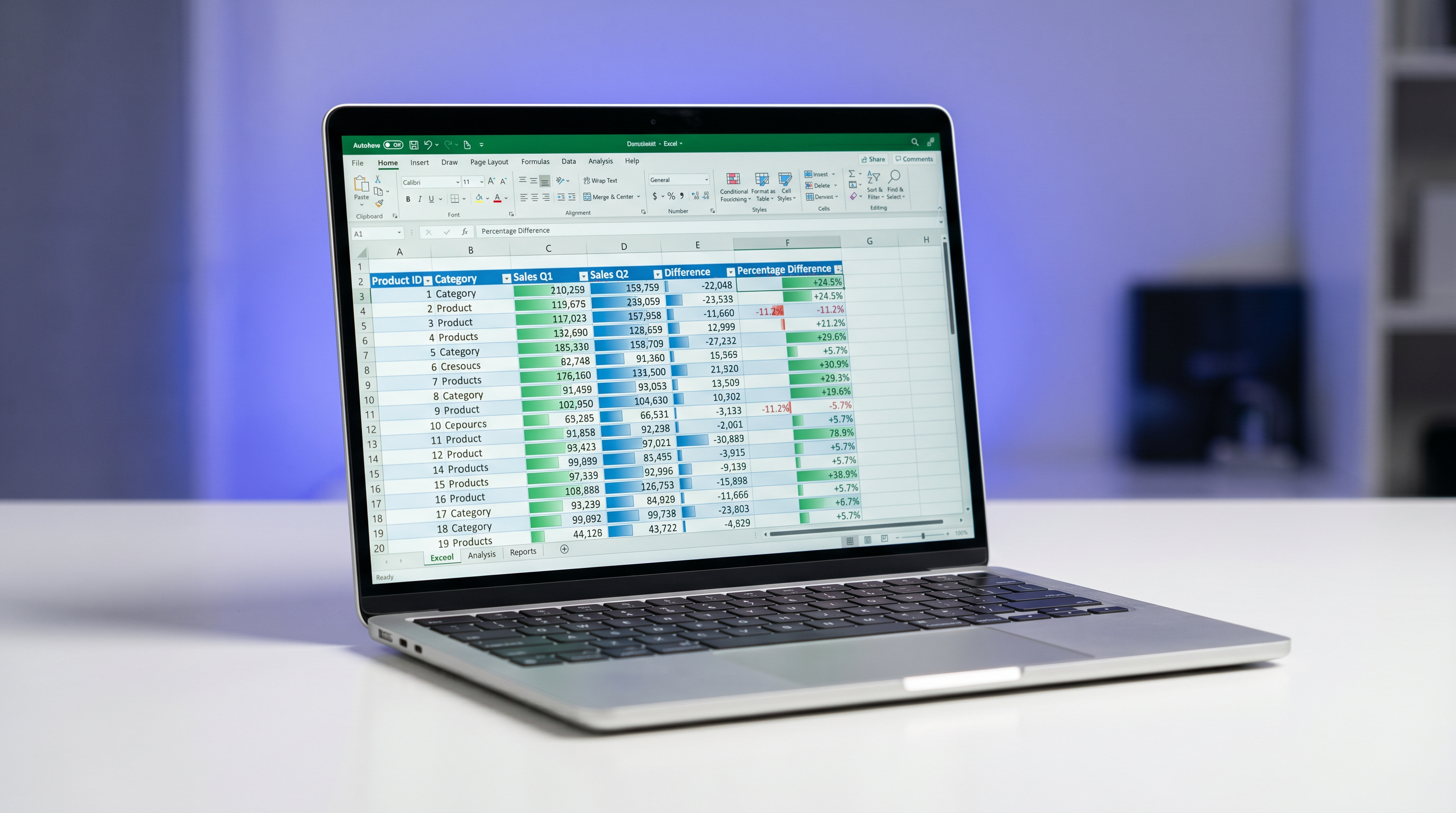
Calculate Percentage Difference in Excel: Master the Formula, ABS Pro Tip & Step-by-Step Examples
Why Percentage Difference in Excel is Your Business Superpower
Picture this: It's quarter-end, and your sales dashboard stares back accusingly. Did revenue spike 25% or plummet into oblivion? Without mastering the percentage difference Excel formula, you're guessing—and in business, guesses cost money. Office workers crunching reports, analysts dissecting trends, small business owners tracking every dollar: you all rely on precise metrics to make decisions that stick.
Percentage analysis isn't just math; it's the lens that turns raw numbers into actionable insights. Spot growth to double down on winners. Uncover cuts to tighten belts. But common pitfalls lurk: slapping together a sloppy subtraction without context, ignoring directionality, or botching negatives. These slip-ups distort reality—sales "growth" that looks like a loss, or recoveries masked as disasters. Fear not. This guide arms you with the percentage difference formula Excel pros swear by, complete with step-by-step formulas to instantly calculate and master your math.
Whether comparing Q1 to Q4 sales or budget actuals versus forecasts, you'll learn to wield Excel like a scalpel. Ready to transform vague hunches into crystal-clear strategies? Let's dive in.
The Core Formula: Unlock Percentage Difference in Excel
At its heart, the calculate percent difference in Excel boils down to one elegant equation. No fluff, no fluff—just results.
Enter this powerhouse in any cell:
=(New_Value - Old_Value) / ABS(Old_Value)
Or, for cells A1 (old) and B1 (new):
=(B1 - A1) / ABS(A1)
Why this structure? The numerator captures change (new minus old). The denominator normalizes against the original baseline using ABS for safety. Multiply by 100? Excel's percentage formatting handles that. Plug it in, hit Enter, and watch your Excel percent difference between two numbers materialize. Simple. Scalable. Bulletproof.
Pro tip: Copy this formula down columns for batch magic. Suddenly, your entire dataset sings with insights.
The ABS Pro Tip: Dodge the Negative Value Trap
Why ABS() Saves Your Sanity
Here's where rookies stumble—and veterans shine. Skip ABS in the denominator, and negative starting values wreak havoc. Say your old value is -100 (a loss). New value: 50 (partial recovery). Naive formula: (50 - (-100)) / -100 = 150 / -100 = -150%. A triumph reads as catastrophe. Absurd.
Enter ABS(): It flips the denominator positive every time. Same example: 150 / ABS(-100) = 150 / 100 = 150%. Boom—truth revealed.
- Handles losses gracefully: From red ink to black? Positive percentage.
- Consistent baselines: No sign-flipping weirdness.
- Analyst-proof: One function prevents boardroom blunders.
This isn't theory. It's the fix that turns "What happened?!" into "Here's our win." Master your math by making ABS non-negotiable.
Step-by-Step Examples: Percentage Difference in Action
Example 1: Sales Growth—From Steady to Soaring
- Open Excel, enter A1: 10,000 (Q1 sales), B1: 15,000 (Q2).
- C1:
=(B1-A1)/ABS(A1)→ 0.5 or 50% after formatting. - Insight: 50% growth. Time to scale that campaign.
Feel the rush? That's data talking.
Example 2: Budget Cuts—Trimming Without Panic
- A1: 5,000 (planned budget), B1: 4,000 (actual).
- C1:
=(B1-A1)/ABS(A1)→ -0.2 or -20%. - Action: Pinpoint overspend, celebrate discipline.
Negative? Strategic, not scary.
Example 3: Recovery Pivot—From Loss to Profit
- A1: -2,000 (last year's loss), B1: 3,000 (this year).
- C1:
=(B1-A1)/ABS(A1)→ 2.5 or 250%. - Reality: Massive turnaround. High-five the team.
Without ABS? Disaster. With it? Victory lap. These step-by-step formulas scale to any scenario.
Formatting Your Results: Make Percentages Pop
Raw decimals are drab. Transform them into polished percentages.
- Select your formula cell(s).
- Home tab → Number group → Click the % button.
- Excel auto-multiplies by 100, adds the symbol. 0.5 becomes 50%.
- Tweak decimals? Right-click → Format Cells → Percentage → Set places (e.g., 1 for 50.0%).
Dashboards dazzle. Reports persuade. Instantly calculate and present like a pro.
Percent Change vs. Percent Difference: Know the Nuances
Terms trip up even pros. Percent change? Sequential, time-bound: (new - old)/|old|. Perfect for trends.
Percent difference? Broader comparisons, independent metrics: |new - old| / ((new + old)/2). Symmetric, neutral.
- Use percent change: Sales over time, growth rates.
- Use percent difference: Competitor apples-to-apples, A/B tests.
- Our formula: Directional change—growth or decline—with baseline focus.
Context is king. Choose wisely, report confidently.
Common Errors & Fixes: Bulletproof Your Calculations
Excel fights back sometimes. Here's your shield.
#DIV/0! Hell
- Cause: Old value = 0.
- Fix:
=IF(ABS(A1)=0, "N/A", (B1-A1)/ABS(A1))or IFERROR wrapper.
Formatting Fiascos
- Decimals lingering? Force % format.
- Negative signs vanishing? Check custom formats: 0.00%;-0.00%.
Test edge cases: zeros, negatives, giants. Your formulas endure.
Master Percentage Difference—And Level Up
You've got the percentage difference Excel arsenal: formula, ABS safeguard, examples, fixes. No more foggy reports or misguided moves. Deploy these in your next pivot table, impress the boss, outpace rivals.
For even quicker wins, supercharge with PercentPro—your go-to for instant formulas and deeper learning. Plug in numbers, get perfection. Questions? Experiment boldly. Your data awaits.